
Built-in Visual Editor#
Draw, check, simulate and generate code in one tool. The editor comes with the code generator, at no extra cost.
See it in action#
A state machine built from scratch in the empty editor: states, regions, a choice, and an
event that carries data. Then the header code and the handler signature are set, the C code is
generated, and a minimal main.c sends two events to the machine. The middle part runs in fast
motion. The panel on the right explains each step; the film has no sound (4 minutes).
The tutorial walks through the same steps at your own pace.
Features#
-
Model in the tree
States, choices, final and history states, regions and transitions. Move them by drag and drop, copy and paste, undo and redo, and add notes to a state. -
Automatic layout
The editor draws the diagram itself, so there is nothing to place by hand. Sliders set how much detail states and transitions show; regions open in their own tab. -
Events with data
The Event Overview lists every event and the fields it carries. Rename an event and every transition follows.
-
Check and generate
Check the model and generate code in C, C++, Rust, Java, Python, C#, Go, Swift, Lua or JavaScript, straight from the toolbar. -
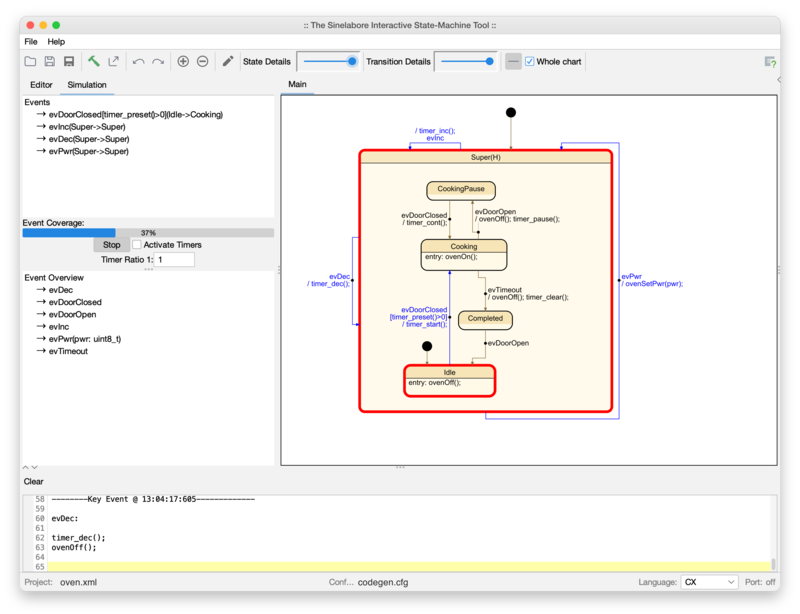
Simulate
Send events, run timers and watch the active states. The coverage bar shows how much of the model your events have reached. -
Plain files
The model is one XML file. The same file builds withmakeand the command-line generator, for example in CI.
Start the editor#
java -jar codegen.jar -p ssc -E -o model model.xmlThe editor needs Java 17 or newer and runs on Windows, macOS and Linux. Download it together with the code generator from the download page.
To only simulate a model, for example one drawn in a UML tool, start with -S instead of -E;
the editor is off then:
java -jar codegen.jar -p CADIFRA -S -o oven oven.cdd. With -S, a running target can drive the
simulation too: each UDP datagram it sends carries one event string, as the generated trace
function produces it (__INIT__ restarts the simulation). The manual describes this in the
tracing section.
Show a running target#
The same diagram can show where a state machine running on your target is. The target reports
its innermost active states over UDP; started with -V (or --View), the code generator
highlights them,
together with their parent states and the transitions that can leave them. The editor and the
local simulation are off in this mode, and nothing is highlighted until the first report
arrives.
Switch the receiver on in codegen.cfg:
MulticastUdpConnection=yes
MulticastAddress=239.1.1.1
UdpPort=4445
# e.g. en0 or eth0; empty: the operating system chooses
NetworkInterfaceName=
Then start the code generator in the model’s directory:
java -jar codegen.jar -V -p ssc -o oven oven.xmlThe same settings switch on the reception of event strings for -S.
A report is one UDP datagram (UTF-8), sent to the multicast group or directly to the PC:
from=oven;state=Cooking
from=oven;state=DoorOpen,LampOn
from=oven;state=fromnames the machine. The code generator shows one machine: the one named with-SIN, otherwise the one named like the model file. Several targets can share one group, each shown by its own window.statelists the innermost active states, one per active region, as the generatedGetNameByState()returns them. An empty list clears the highlight.- Each report is complete. Send one after every state change, and best also periodically, so a lost datagram is corrected by the next one.
A C target can report like this after each call of the state machine:
char report[64];
int len = snprintf(report, sizeof(report), "from=oven;state=%s",
                   ovenGetNameByState(ovenGetInnermostActiveState(&oven)));
sendto(s, report, len, 0, (struct sockaddr *)&addr, sizeof(addr));
A C++ machine provides getInnermostActiveStates() and getNameByState(). If the target has no
network interface, a small program on the PC can receive the state over a serial or CAN link and
forward the report. The manual describes the details.