
Automatic Light Controller#
State machine example#
Outdoor automatic light switches are widely used. They provide the convenience of switching outdoor lights on and off automatically, and they can also help save energy. Other names for such a device are motion-activated (or motion-sensing) porch light and dusk-to-dawn sensor porch light.
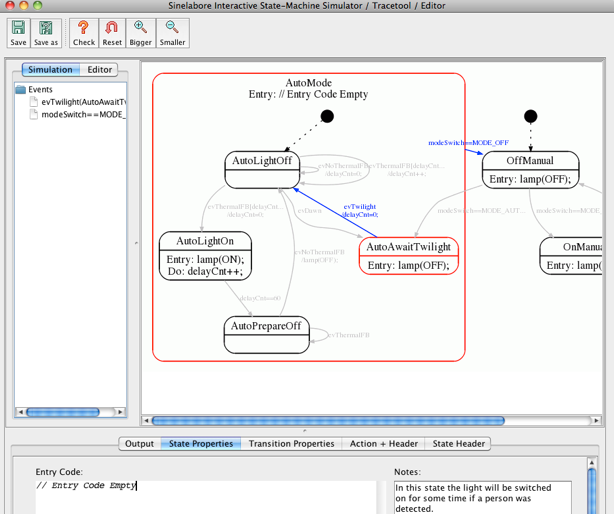
The following figure shows a simplified state machine of such a device.
Functional requirements#
The device has three modes that can be changed using a simple switch. It has the positions OFF, AUTO, and ON. The switch is designed so that the user can only go from OFF to AUTO to ON, and vice versa.
In ON mode, the light is permanently switched on. In OFF mode, the light is permanently switched off. In AUTO mode, the light is automatically switched on and off as described in the next section.
When it becomes dark and AUTO mode is active, the device automatically switches on the light if a person is detected. If the person walks away, the light is switched off again. The light stays on for at least a configurable time (e.g. 60 s). If the person is still nearby after that time, the light remains on until no person is detected.
The light should not be switched on during daylight. Therefore, the device permanently measures ambient brightness. Only if the measured value is below an adjustable threshold does the device switch on the light automatically.
State machine design#
The three modes of the device can be transferred directly into states. The AUTO state is a hierarchical state that realizes day/night behavior when a person is detected. The design was created using the SinelaboreRT state machine editor. The diagram is shown in the figure above.
The automatic light controller ZIP file contains the fully worked-out example with a simple text-based command interface. Start the executable and type one of the supported letters to trigger the machine.
Available commands:
+There is a person-There is no persontAmbient brightness low (twilight, night)dAmbient brightness high (dawn, day)aAuto modeoPermanent onxPermanent offqQuit the program
The files gui.c/h realize keyboard handling. In light_trace.c, a simple trace function is implemented to trace event flow. main.c calls the state machine and checks the keyboard for new events. All other files are automatically generated from the state machine shown above.
To test the machine, type for example: o x a t + ... (repeat 20 times) + -
Graphical trace#
The SinelaboreRT code generation tool can display state diagrams based on an automatic layout engine. In simulation mode, trace data can be received via a UDP connection. The received events are then used to trigger the same state changes as in the compiled C program. This makes it possible to follow the state changes of light.exe while stimulating it with keyboard events.
The prepared example already sends trace data via UDP (see light_trace.c). To display the state machine, start the editor in simulation mode as follows:
java -jar codegen.jar -p ssc -S -o automatic_light.xml automatic_light.xmlThis command line opens a window showing the state machine. Make sure Graphviz is installed on your system and the correct path to dot.exe (layout engine) is defined in the codegen.cfg file. Otherwise, you will get an error message when starting code generation in simulation mode.
Start the light executable again and type commands. You can then follow the current state of the state machine and the C code executed in reaction to your keyboard input.
The ZIP file contains executables built with Cygwin on Windows (light.exe) and for macOS (light_osx). To change the state machine or generate the code yourself, download the demo version of the Sinelabore code generator.